
















Make an Elementor button stretch across the full width of its container using the Button widget from The Plus Addons for Elementor. No custom CSS needed.
What You’ll Build
A button that spans the entire width of the container it sits in, instead of hugging its own text. Full-width buttons are easier to tap on mobile and work well at the end of a form, a pricing card, or a call-to-action section.

Before You Start
- Edition: Free — the Button widget ships in both The Plus Addons for Elementor (Free) and Pro.
- Plugin: The Plus Addons for Elementor, installed and activated.
- Widget to enable: Button, switched on under ThePlus Settings > Widgets.
Step 1: Add the Button widget
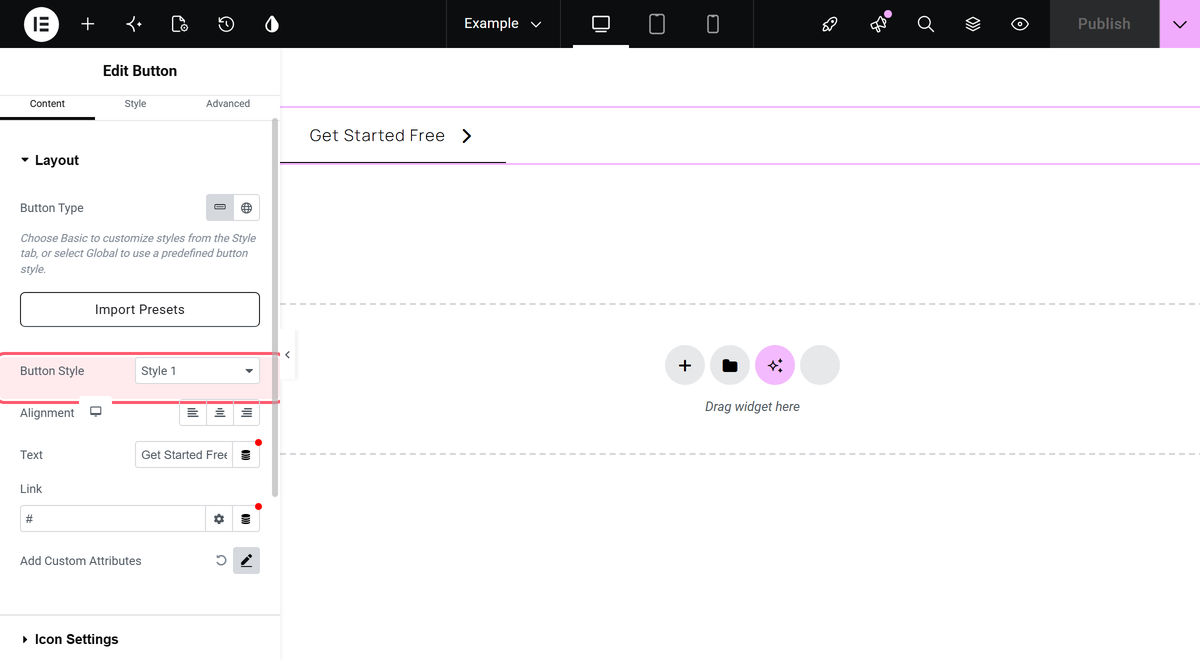
In the Elementor editor, search the widget panel for Button and drag it into your container. On the Content tab, open Layout and pick a Button Style — eight styles ship with the widget.
Step 2: Set the button label
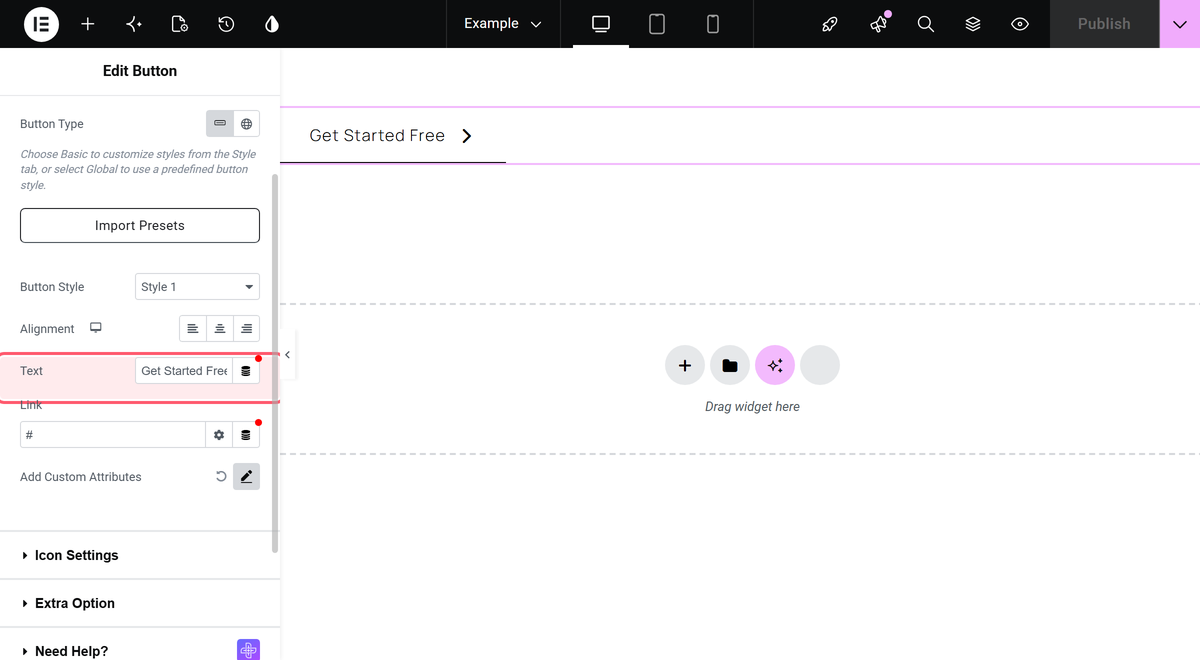
In the same Layout section, type your label into the Text field. The default is Read More. The canvas updates as you type.
Step 3: Point the button somewhere
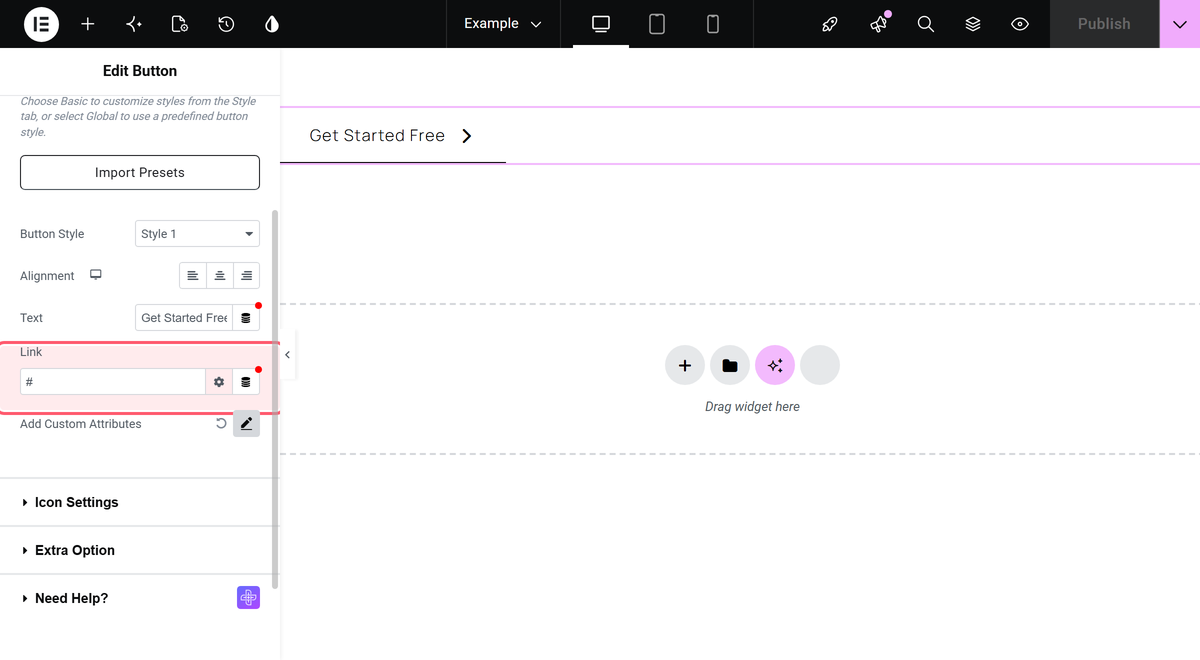
Set Link to the destination URL. Leave it empty and the button renders but goes nowhere.
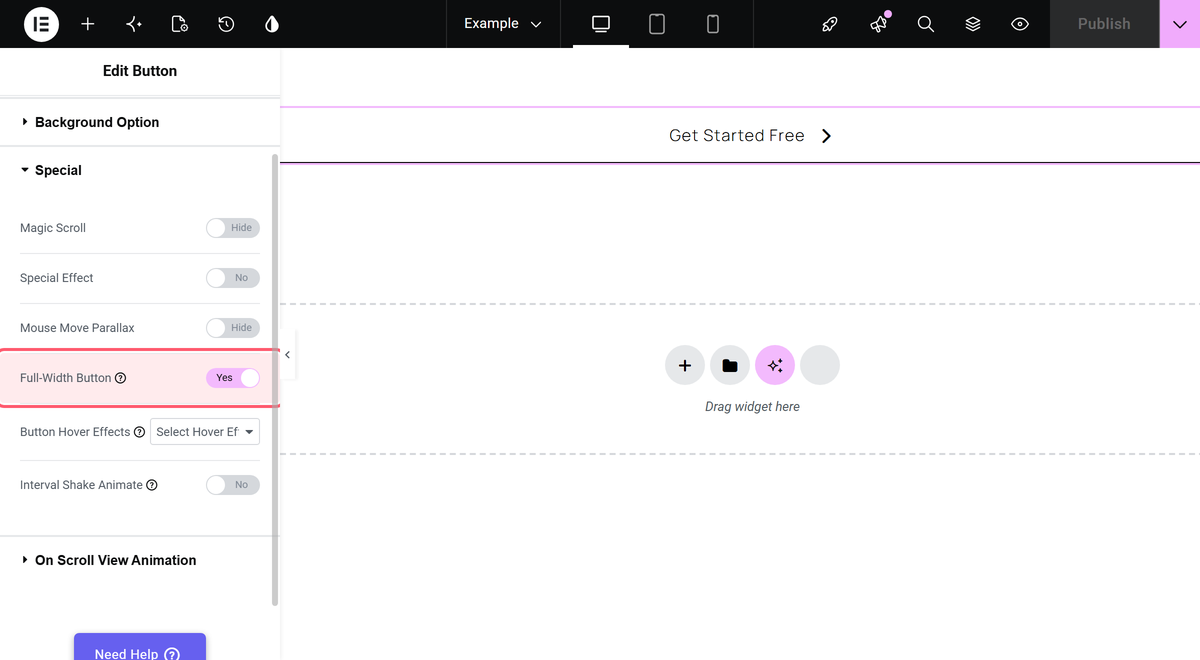
Step 4: Turn on Full-Width Button
Switch to the Style tab, open the Special section, and turn Full-Width Button on. It is off by default. The button stretches to fill the container immediately in the preview.
Settings Reference
| Setting | Tab | Type | Default |
|---|---|---|---|
| Button Style | Content > Layout | Select (style-1 to style-8) | style-1 |
| Text | Content > Layout | Text | Read More |
| Link | Content > Layout | URL | Empty |
| Hover Text | Content | Text | Click Here |
| Full-Width Button | Style > Special | Switcher | No |
Customise It
- Change the label on hover. Set Hover Text on the Content tab to swap the wording when someone points at the button.
- Constrain the width. Full-Width Button fills the parent container, so the practical width is set by that container’s width and padding. Reduce the container padding for an edge-to-edge button.
- Try a different style. Styles 1 to 8 change the button’s shape and hover behaviour without touching the full-width setting.
Limitations
- Full-Width Button is not responsive. It is a single switcher with no separate tablet or mobile value, so the setting applies at every breakpoint. If you need full width only on mobile, use Elementor’s own Width control on the Advanced tab instead, which does have per-device values.
- Width is bounded by the parent container. Turning the toggle on adds a
full-buttonclass to the widget wrapper; it fills the container, not the viewport. A container with a max-width or padding will still constrain the button. - It is a per-widget setting. There is no global option that makes every button on the site full width.
Troubleshooting
The button still is not full width
Check that you flipped the toggle on the Style tab, not the Content tab — Full-Width Button lives under Style > Special. Then check the parent container: if it has a max-width or heavy horizontal padding, the button is filling that narrower box correctly.
I cannot find the Button widget in the panel
The widget may be switched off. Go to ThePlus Settings > Widgets in the WordPress admin, enable Button, save, and reload the Elementor editor.
It looks full width in the editor but not on the live page
This is usually cached CSS. Regenerate Elementor’s files from Elementor > Tools > Regenerate CSS & Data, then clear any page-caching or CDN layer in front of the site.