























WordPress search returns everything — posts, pages, products, all mixed together. The WP Search Bar widget can scope a search to WooCommerce products only, so shoppers see products and nothing else.
What You’ll Build
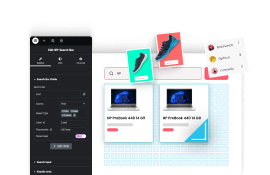
A search bar on your store page that returns only WooCommerce products, with a dropdown beside the input showing what is being searched. Blog posts and pages never appear in the results.
Before You Start
- Edition: Free — the WP Search Bar widget ships in both The Plus Addons for Elementor (Free) and Pro.
- Plugin: The Plus Addons for Elementor, installed and activated.
- Also required: WooCommerce, active, with at least one published product. The Products option only appears once WooCommerce registers its post type.
- Widget to enable: WP Search Bar, switched on under ThePlus Settings > Widgets.
Step 1: Add the widget and open the search field row
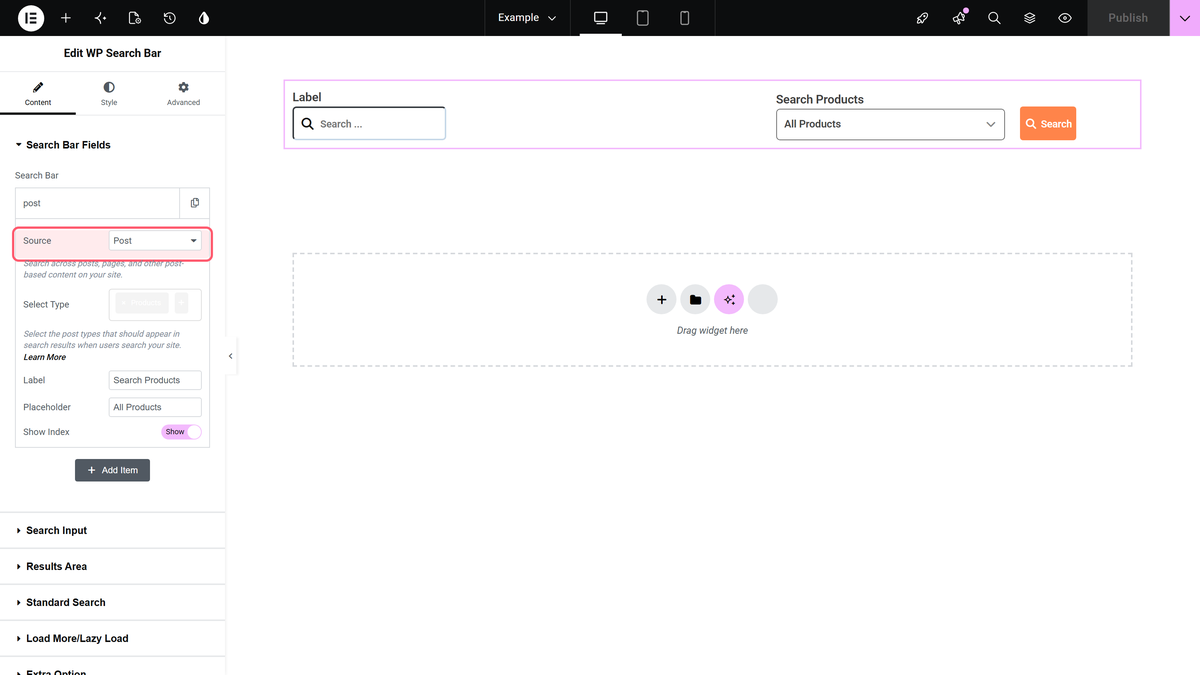
Drag WP Search Bar onto your page or template. Open the Search Bar Fields section and click the Search Bar row to expand it, then set Source to Post. The other option, Taxonomy, searches categories and tags instead of content.
Step 2: Scope the search to products
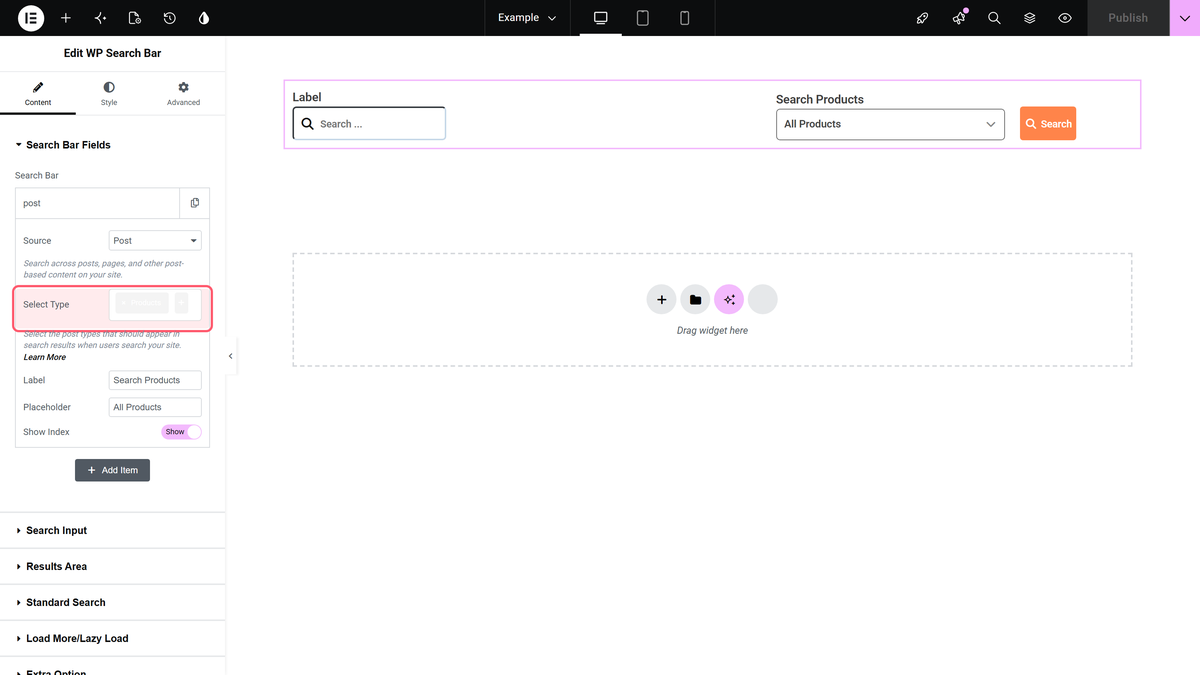
In Select Type, choose Products — and remove Posts, which is selected by default. Leaving Posts in place is what causes blog content to keep appearing in results.
Step 3: Label the dropdown
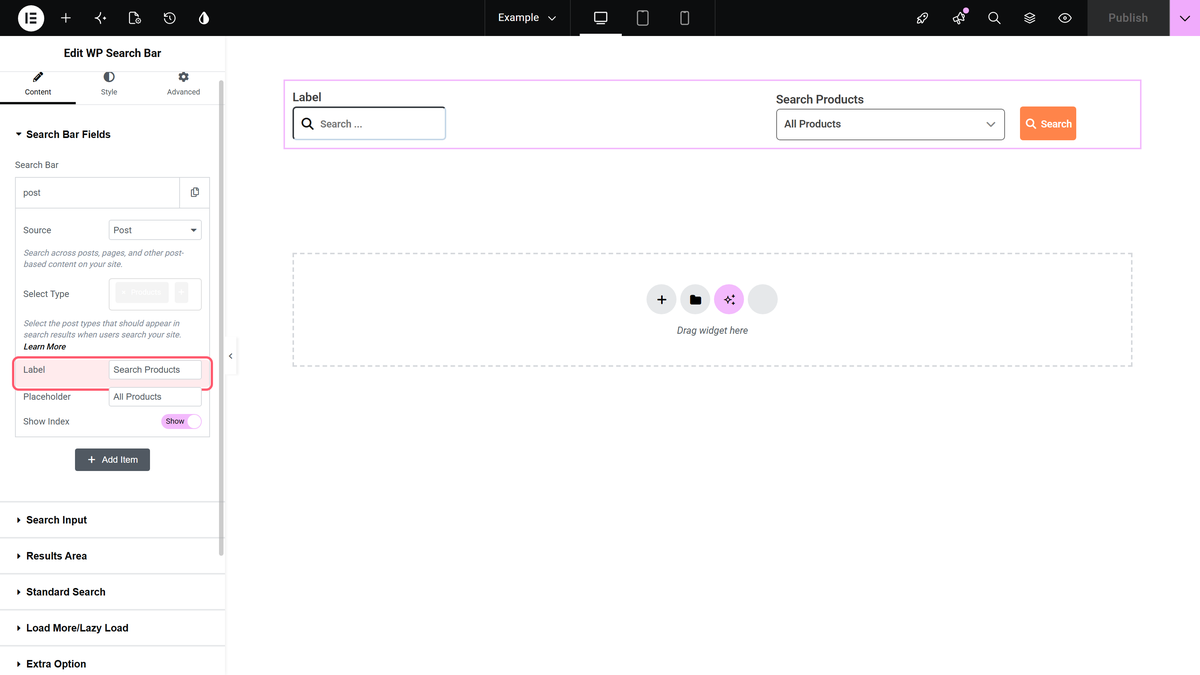
Set Label to the wording shown beside the search field, for example “Search Products”.
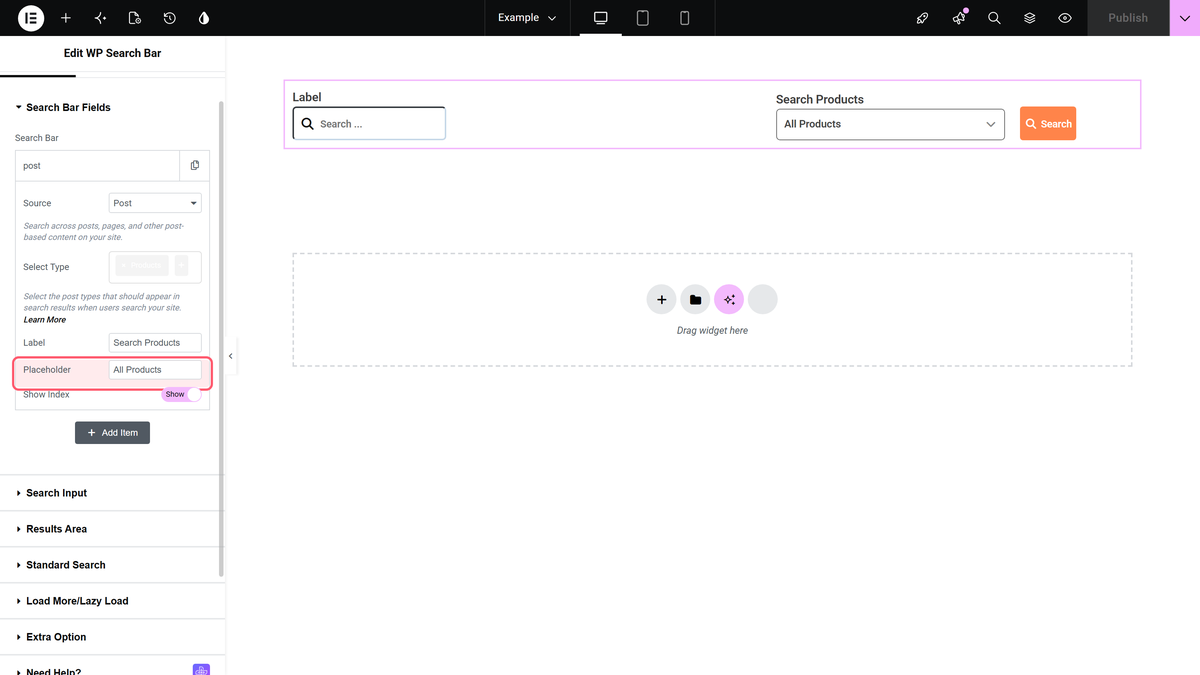
Step 4: Set the placeholder
Placeholder is the text shown in the dropdown before a shopper picks anything. The default is All Posts — change it to something like “All Products”.
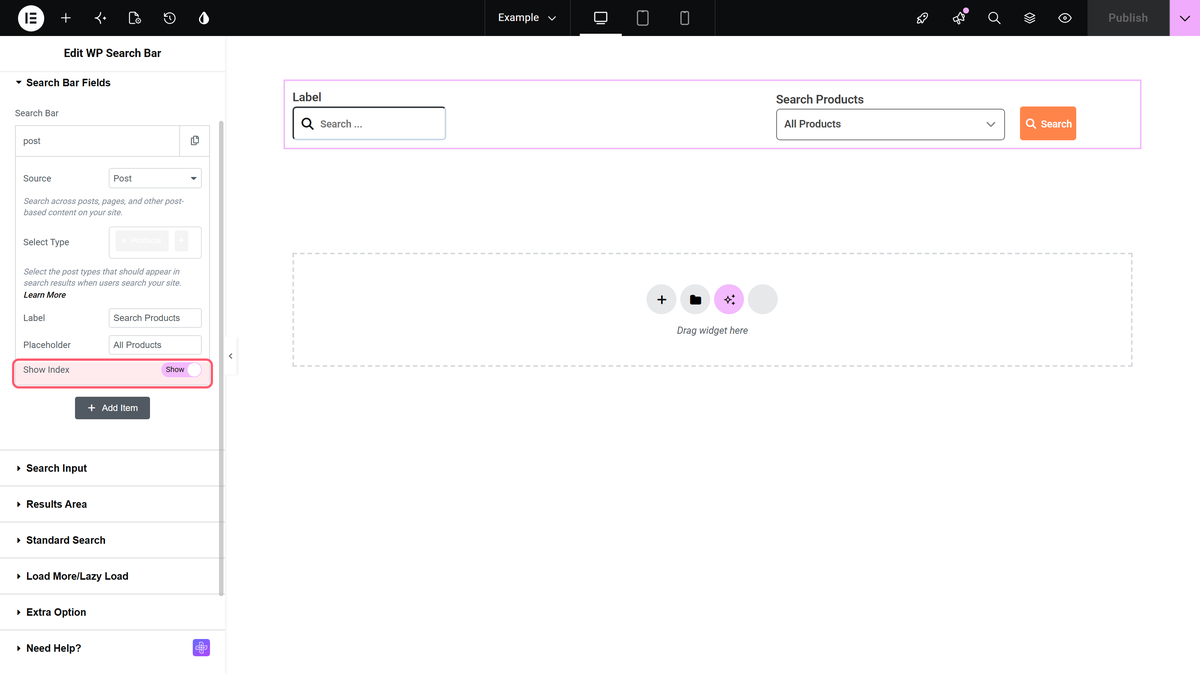
Step 5: Decide whether to show result counts
Leave Show Index on to display a result count beside each entry in the dropdown. It is on by default.
Settings Reference
| Setting | Where | Options | Default |
|---|---|---|---|
| Source | Search Bar Fields > repeater row | Select Source, Post, Taxonomy | Select Source |
| Select Type | Search Bar Fields > repeater row | Any registered post type | Posts |
| Label | Search Bar Fields > repeater row | Free text | Label |
| Placeholder | Search Bar Fields > repeater row | Free text | All Posts |
| Show Index | Search Bar Fields > repeater row | Show / Hide | Show |
| Show Sub category | Search Bar Fields > repeater row | Show / Hide | Hide |
| AJAX Search | Extra Option | On / Off | On |
Customise It
- Search product categories instead. Set Source to Taxonomy and pick the WooCommerce product category taxonomy, so shoppers browse by category rather than product name.
- Search products and one more type. Select Type accepts multiple values.
- Turn off live results. AJAX Search in the Extra Option section is on by default, giving results as the shopper types. Switch it off for a traditional submit-then-search behaviour.
- Add several search scopes. The Search Bar field is a repeater, so more rows become more options in the dropdown beside the input.
Limitations
- Select Type only appears when Source is Post. Choose Taxonomy and the control is replaced by a taxonomy picker.
- Posts is pre-selected. Adding Products does not remove Posts — you have to delete it.
- Products requires WooCommerce. The option is populated from registered post types, so it is absent if WooCommerce is inactive.
- This scopes the widget, not the site. Other search forms, including the theme’s own, are unaffected.
Troubleshooting
Blog posts still show in the results
Posts is still in the Select Type field. It is selected by default and adding Products does not replace it. Remove the Posts chip so only Products remains.
I cannot find Products in Select Type
Confirm WooCommerce is active — the list is built from registered post types. Also check that Source is set to Post; Select Type is hidden for the Taxonomy source.
The dropdown beside the search bar is empty
Each repeater row becomes one dropdown option, and a row with no Source set produces nothing. Open the row and make sure Source and Select Type are both filled in.