























[rank_math_breadcrumb]

How to Make Elementor Image Carousel of the Same Height?

Table Of Content

When a carousel pulls in images of different dimensions, the slides jump in height as it scrolls. The Gallery Listing widget can force every image to the same size, so the carousel holds a steady height.

What You’ll Build

An image carousel where every slide is exactly the same height, regardless of the dimensions of the images you uploaded. This removes the layout shift you get when portrait and landscape images sit in the same carousel.

Before You Start

  • Edition: Free — the Gallery Listing widget ships in both The Plus Addons for Elementor (Free) and Pro.
  • Plugin: The Plus Addons for Elementor, installed and activated.
  • Widget to enable: Gallery Listing, switched on under ThePlus Settings > Widgets.
  • Your images: each source image must be at least 700 × 700 pixels, otherwise WordPress cannot crop it to that size and will fall back to the original.

Step 1: Add the widget and pick a style

Drag Gallery Listing into your container. On the Content tab open the Layout section and pick a Style — four ship with the widget.

Elementor editor with the Gallery Listing Style selector highlighted

Step 2: Switch the layout to Carousel

Set Layout to Carousel. The default is Grid; the other options are Masonry and Metro. This step matters — the image-size control in step 4 only exists for the Carousel layout.

Elementor editor with the Gallery Listing Layout dropdown set to Carousel

Step 3: Choose a popup layout

Still in Layout, pick a Popup Layout if you want images to open in a lightbox.

Elementor editor with the Gallery Listing Popup Layout dropdown highlighted

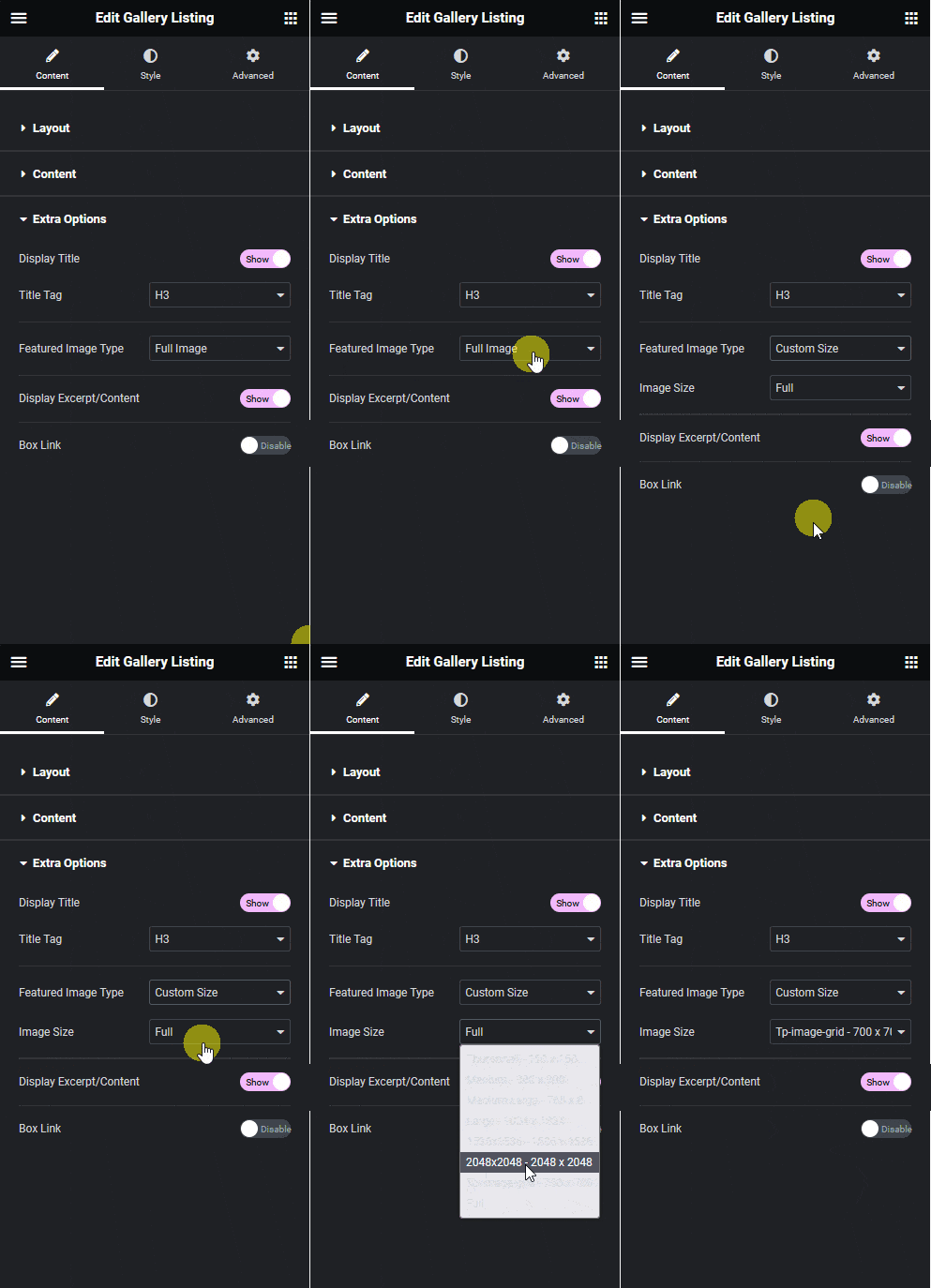
Step 4: Set Featured Image Type to Custom Size

Open the Extra Options section and set Featured Image Type to Custom Size. The default is Full Image.

Elementor editor with Featured Image Type set to Custom Size

Step 5: Pick the fixed image size

An Image Resolution dropdown appears below. Set it to tp-image-grid – 700 × 700. Every slide now renders at that size.

Elementor editor with the Image Resolution dropdown highlighted

Settings Reference

SettingSectionOptionsDefault
StyleLayoutStyle 1 to Style 4Style 1
LayoutLayoutGrid, Masonry, Metro, CarouselGrid
Popup LayoutLayoutDefault, NoDefault
Featured Image TypeExtra OptionsFull Image, Grid Image, Custom SizeFull Image
Image ResolutionExtra OptionsRegistered WordPress image sizesFull

Customise It

  • Use a different square size. Any registered WordPress image size appears in the Image Resolution dropdown, not just tp-image-grid.
  • Keep the original proportions. Leave Featured Image Type on Full Image to show images at their natural aspect ratio.
  • Style the carousel controls. The Style tab has a Carousel Options section with five arrow styles and five dot styles.

Limitations

  • Featured Image Type only exists in Carousel layout. Switch back to Grid, Masonry or Metro and the control disappears — those layouts use the separate Display Image Size switcher instead.
  • Image Resolution only appears after choosing Custom Size. While Featured Image Type is Full Image or Grid Image, there is no resolution dropdown to set.
  • Source images must be large enough. WordPress crops down, never up. An image smaller than 700 × 700 cannot be cropped to that size and will not match the others.
  • Existing images need regenerating. Images uploaded before the size was registered have no 700 × 700 file. Regenerate thumbnails so the crop exists.

Troubleshooting

I cannot find Featured Image Type

Check that Layout is set to Carousel. This control is hidden for the Grid, Masonry and Metro layouts by design.

Images are still different heights

Either some source images are smaller than 700 × 700, so WordPress served the original instead of a crop; or the images were uploaded before the size existed and have no cropped file yet. Check the dimensions of the odd images first, then regenerate thumbnails.

The carousel looks right in the editor but not on the live page

Regenerate Elementor’s files from Elementor > Tools > Regenerate CSS & Data, then clear any page-caching plugin and CDN in front of the site.

Related Docs

Get Instant Answers to all your questions about The Plus Addons for Elementor, trained on 1000+ Docs and Videos
Get Free 25+ Secrets to Make Elementor Website Faster [Guaranteed Results]

    Subscribe to our YouTube Channel for Elementor Tutorials
    New Video Every Week!
    Automatically Convert Figma Designs to 100% Editable Elementor Website

    Related Docs