











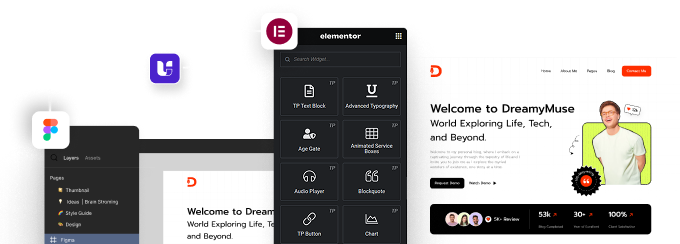


Turn any text into a scrolling marquee in Elementor using the Advanced Typography widget. Choose the direction, the scrolling behaviour and the speed — no custom code.
What You’ll Build
A line of text that scrolls continuously across the page. Marquee text suits announcement bars, ticker strips and offer banners where motion pulls the eye.
Before You Start
- Edition: Pro — the Advanced Typography widget ships only in The Plus Addons for Elementor Pro.
- Plugin: The Plus Addons for Elementor Pro, installed and activated.
- Widget to enable: Advanced Typography, switched on under ThePlus Settings > Widgets.
Step 1: Add the widget and pick the text mode
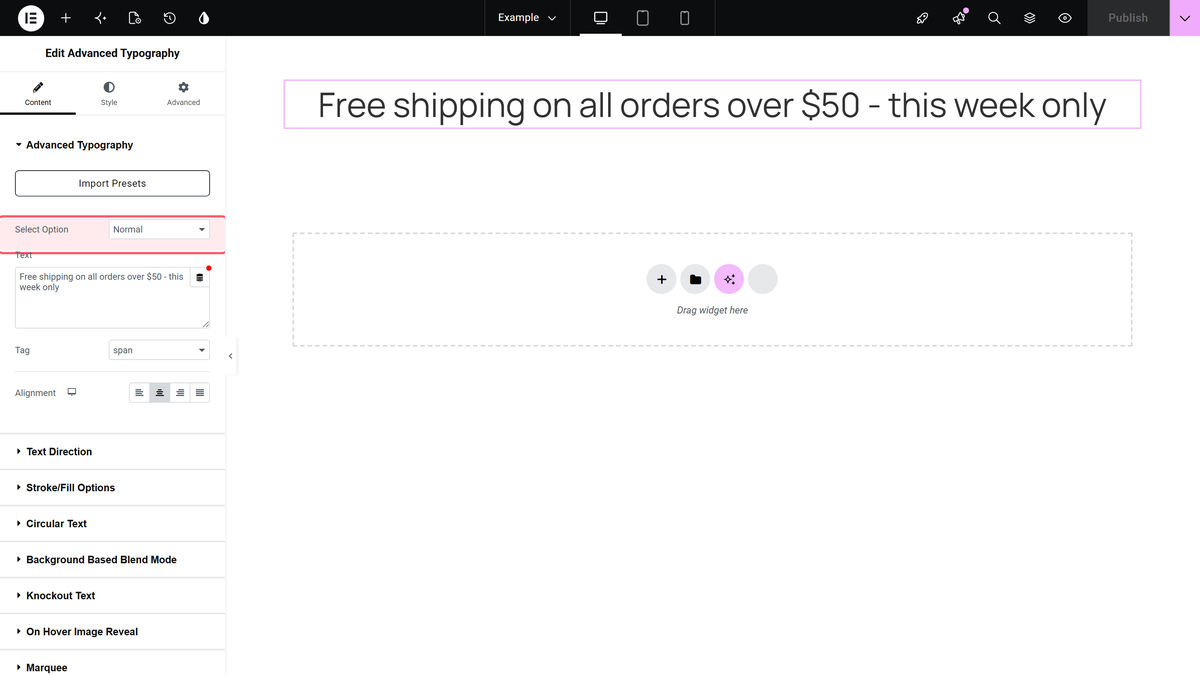
Drag Advanced Typography into your container. On the Content tab set Select Option to Normal for a single line. Choose Multiple instead if you want several scrolling items, each with its own settings.
Step 2: Write your message
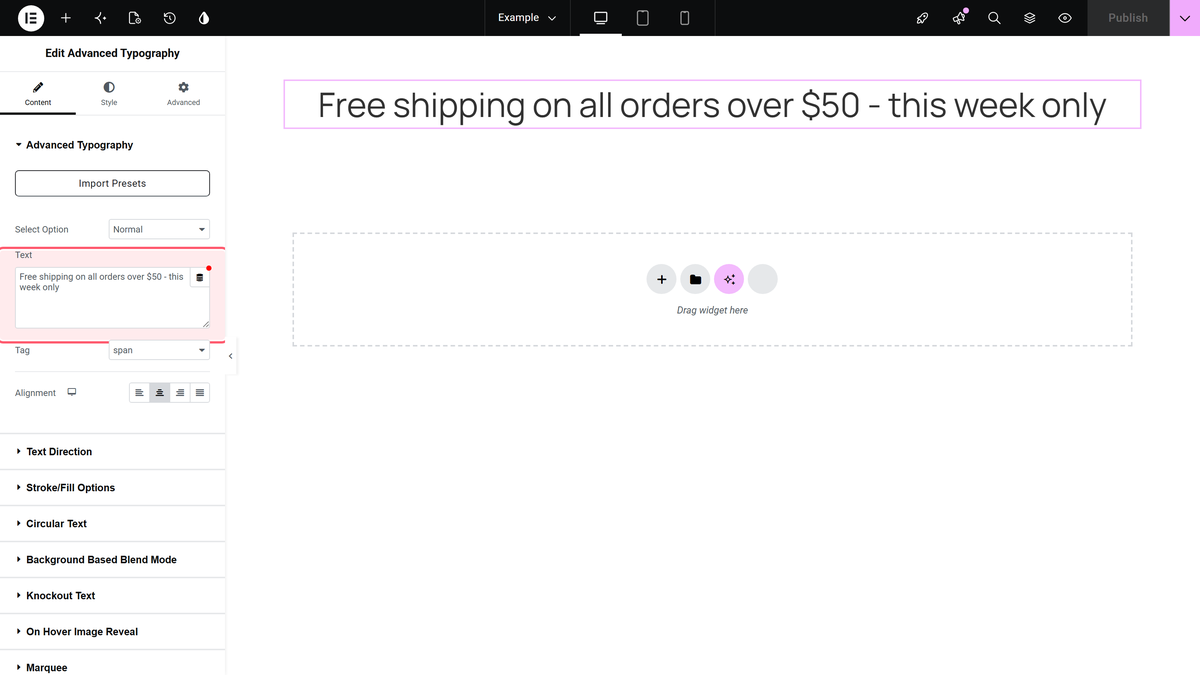
Type the text into the Text field. The canvas updates as you type.
Step 3: Turn the marquee on
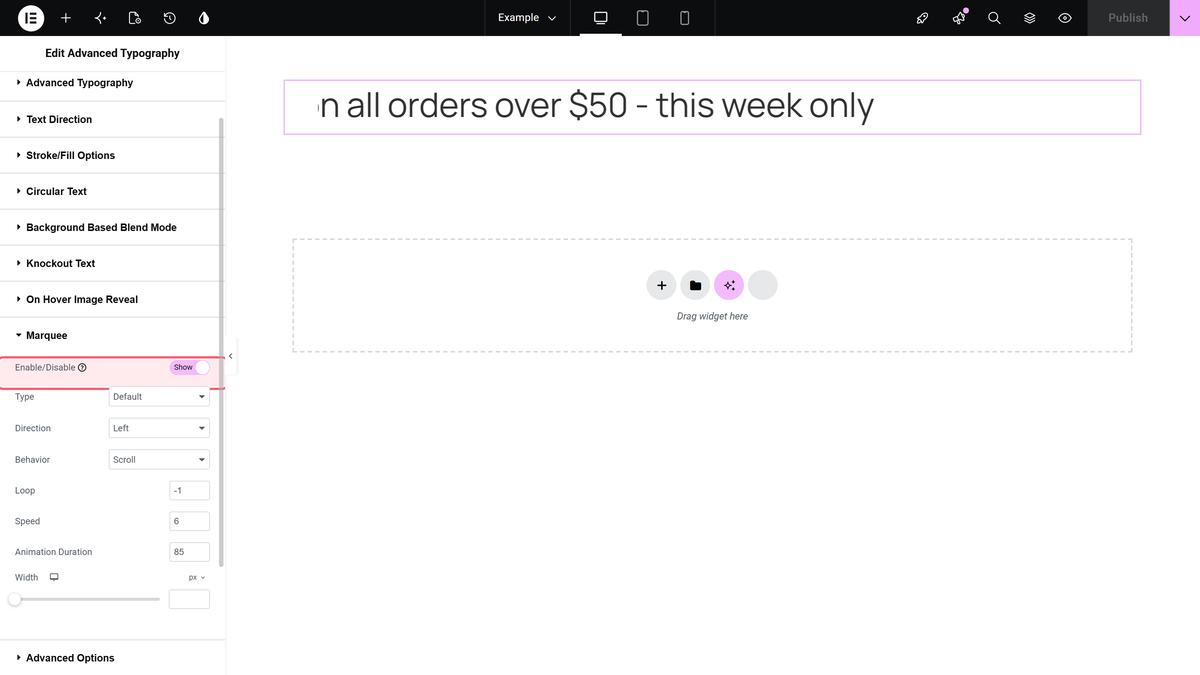
Open the Marquee section and switch Enable/Disable on. It is off by default.
Step 4: Choose how the effect is built
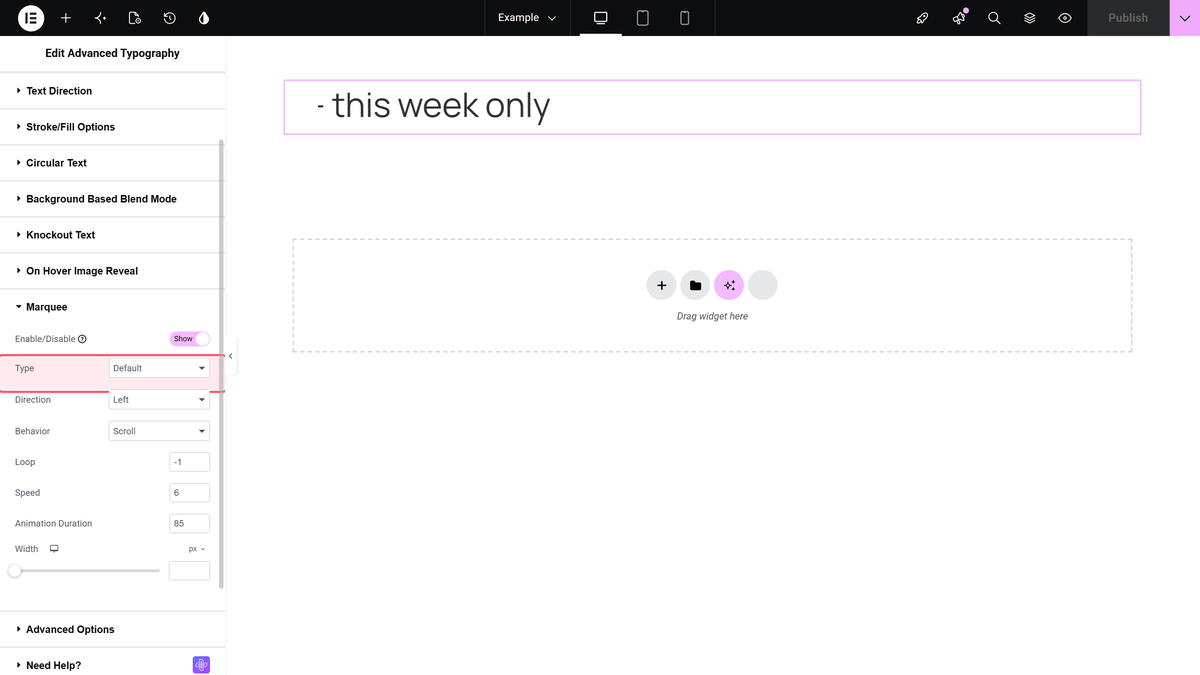
Type offers two options. Default uses the HTML marquee tag; On Transition builds the same effect with a CSS transition.
Step 5: Set the direction and behaviour
Direction offers Left, Right, Up and Down — Left is the default. Directly below it, Behavior offers Scroll (continuous), Slide (moves in once and stops) and Alternate (bounces back and forth).
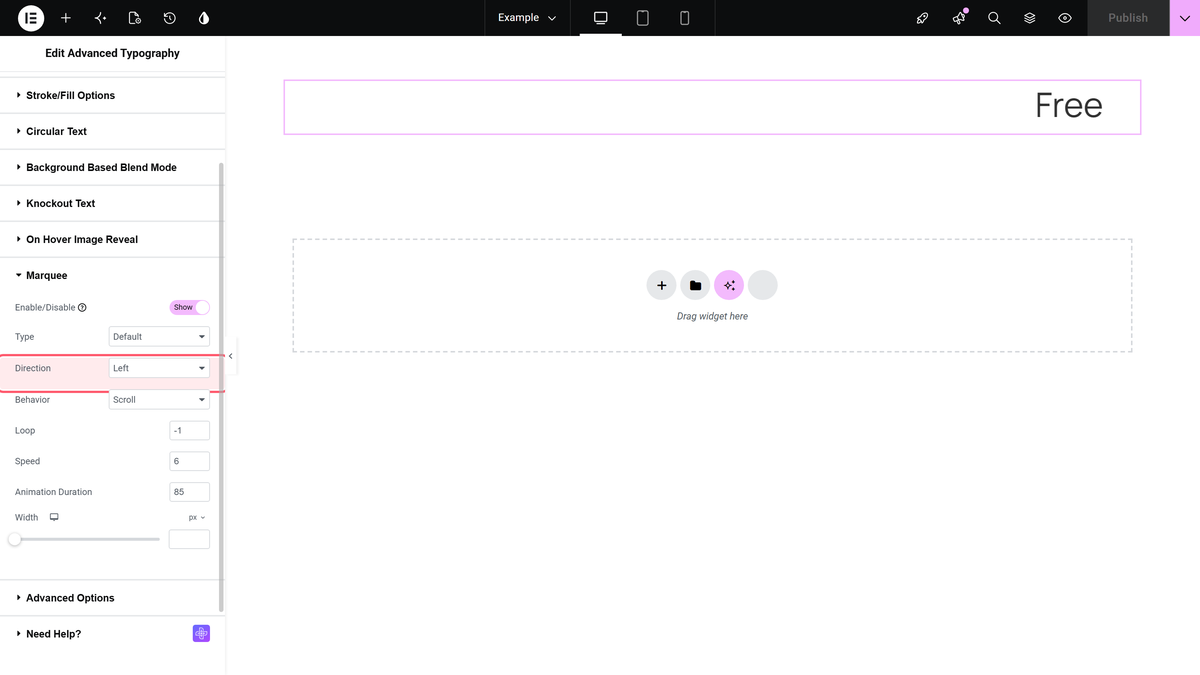
Settings Reference
| Setting | Type | Options | Default |
|---|---|---|---|
| Enable/Disable | Switcher | On / Off | Off |
| Type | Select | Default, On Transition | Default |
| Direction | Select | Left, Right, Up, Down | Left |
| Behavior | Select | Scroll, Slide, Alternate | Scroll |
| Loop | Number | — | -1 (infinite) |
| Speed | Number | — | 6 |
| Animation Duration | Number | — | 85 |
| Width | Slider | — | Container width |
Customise It
- Change the pace. Speed sets how far the text moves per step (default 6). Animation Duration sets the delay between steps (default 85). Lower the duration for faster motion.
- Run it a fixed number of times. Loop defaults to -1, which scrolls forever. Set a positive number to stop after that many passes.
- Scroll several messages. Set Select Option to Multiple and each repeater item gets its own Marquee settings.
- Narrow the scroll area. The Width slider constrains the marquee to less than the full container.
Limitations
- Default type uses the HTML marquee tag, which is deprecated in the HTML spec. Choose On Transition for the same effect built on a CSS transition.
- Marquee settings are per widget. There is no global control that makes every Advanced Typography instance scroll.
- Motion is not paused for reduced-motion users automatically. Consider whether continuously moving text suits the content.
- Pro only. The widget is not available in the free plugin.
Troubleshooting
The text is not scrolling
Check that Enable/Disable in the Marquee section is on — it is off by default. If Select Option is Multiple, the Marquee toggle lives inside each repeater item rather than at widget level.
It scrolls once and stops
Either Loop is set to a positive number instead of -1, or Behavior is Slide, which moves the text in once and holds it. Set Loop to -1 and Behavior to Scroll.
I cannot find the Advanced Typography widget
It is a Pro widget, so confirm The Plus Addons for Elementor Pro is active. Then go to ThePlus Settings > Widgets, enable Advanced Typography, save, and reload the editor.